

Communities
Find your people — communities are where accountability turns into company.
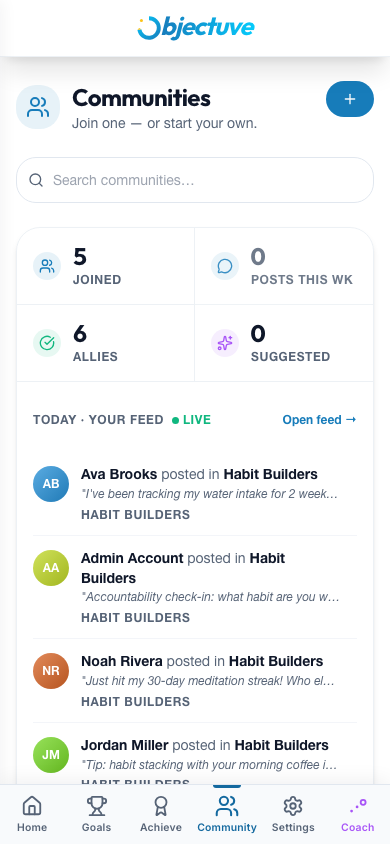
Your hub at a glance
The top of the page is a hub card with a four-up stat strip — Joined, Posts this week, Allies, and Suggested — a live Today · Your Feed column, and a For you column with a nudge from your Coach.
Below the hub card is a dedicated Your allies section: your ally count, an avatar stack, an Add an ally button, any pending requests waiting on you, and a See ally activity → link.
Finding allies
- Open the ally lookup. Tap Add an ally (or Find your first ally) in the Your allies section.
- Pick a tab. Search by name or @username, browse Suggested people who share your communities or goal categories, or check Pending requests.
- Send or accept. A badge dot flags incoming requests waiting on you.
Browsing and joining communities
Search by name or description, filter by category, and sort by Recommended, Trending, Members, Active, or Newest. Toggle between Grid and List views. Tap Join Community on any card to become a member.
Inside a community you'll find a hero header, quick stats, and four tabs — Feed, Members, Goals, and About.
Some communities carry a mark or two under their name. 1,000 members and 500 goals done are exactly what they say. 10 members reached 100 days means ten people here have each hit a 100-day streak at some point — not that they're all on one today. Staff pick means someone at Objectuve chose it by hand.
Community challenges
TIP
Community organizers can run time-boxed challenges — for example, "complete 7 goals this month." Tap Join to take part; your progress advances automatically as you complete qualifying goals, and a leaderboard ranks participants. Finish the challenge and you earn its badge, which lands in your Achievement Hall.
Creating a community
Tap the + button on the Communities page. You'll set a name (5–50 characters), description (up to 500 characters), category (required), privacy (public or invite-only), and optionally a cover image and guidelines.
Walk it through
Find your people
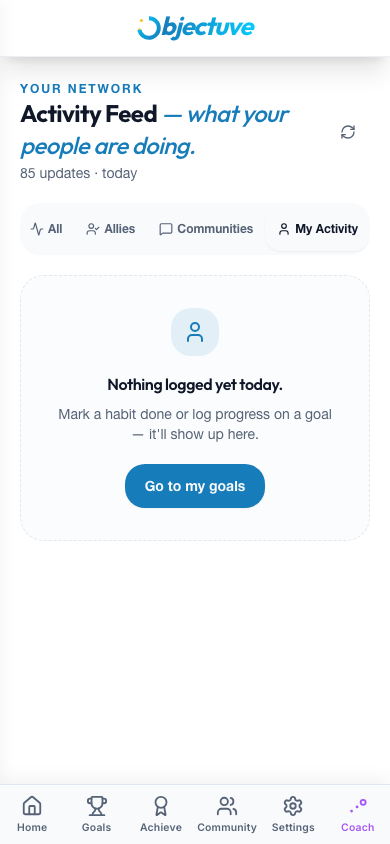
Your hub gathers allies, this week's posts, and a Coach nudge.
Step 1 of 4: Your hub gathers allies, this week's posts, and a Coach nudge.