

Teams
Group accountability for the people who already hold each other to things.
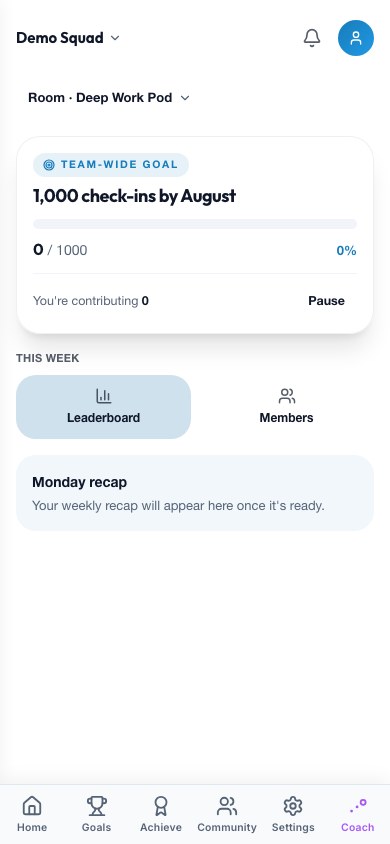
A Team gives a group a shared home base: members, roles, rooms, and a space to see each other's progress — the same accountability instincts as allies and communities, sized for a team instead of a pair.
Your team home
Team home opens on the essentials: your team's collective goal if it has one, a Today feed of check-ins and other activity from teammates, and two shortcuts — Leaderboard and Members.
If you've just joined and haven't logged anything yet, Team home shows a short welcome instead, with a nudge to log your first check-in — it'll show up here and start counting toward the team goal.
Team, Ally, Partner, Supporter, Community, and Room all sound like they could mean the same thing — they don't. Tap See who's who on Team home (or on Communities) for a quick sheet that contrasts all six.
Switching teams
On more than one team — say, coaching a couple of groups at once? Tap your team's name at the top of Team home to open Switch team, pick another team, and everything updates: the activity feed, the room strip, all of it. On just one team, your team name shows as plain text — there's nothing to switch between yet.
Collective goals
Some teams set a shared target everyone can pull toward together. The progress card on Team home shows how far the team's gotten (current / target, days left) and whether you're contributing.
- Tap Contribute to opt one of your personal goals in — every check-in on that goal counts toward the team total.
- Tap Pause any time to stop contributing.
- Tap the goal's title to open the full detail — total progress, and, if you're an owner or admin, who's contributing what.
The first time you opt in, you'll see a short privacy notice: contributing shares your check-in counts with the team, not the specifics of what you're working on.
TIP
Collective goals are still rolling out and may not be turned on for every team yet.
Leaderboard
The team leaderboard ranks members by points earned from check-ins, over weekly, monthly, or all-time windows.
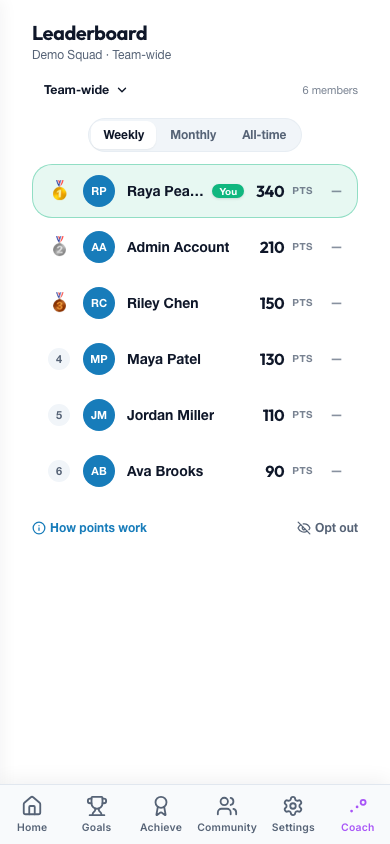
It's built to stay encouraging rather than competitive — no "so-and-so passed you" pushes, just where everyone stands. If you'd rather not appear on it, you can opt out for yourself at any time; you'll show up as anonymous instead of dropping off the board entirely.
TIP
Leaderboards are still rolling out and may not be turned on for every team yet.
Rooms
Rooms split a team into smaller groups, each with its own lead, member count, and weekly check-in pace. Every team has a default room; owners and admins can create more from Team settings → Rooms, up to the team's plan limit.
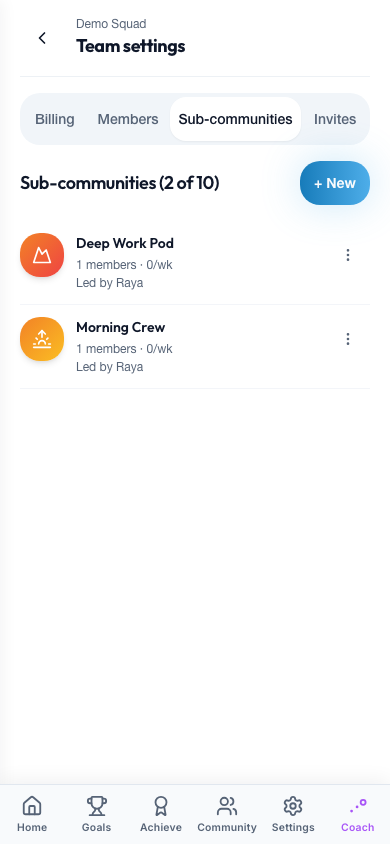
Archiving a room keeps its posts and goals readable for 30 days before they close for good — nothing disappears the moment a room is archived.
Members & invites
Team settings is where the roster lives — Members, Rooms, and Invites tabs (plus Billing for owners).
- Members lists everyone on the team, searchable and filterable by role and status, with the team's seat usage (for example, "6 of 8 seats") at the top.
- Invites is where an owner or admin sends a new invite — by email or by a shareable link — and manages the ones still pending: resend, revoke, or copy the link. Invite links last 14 days before they expire.
- Opening an invite link shows a preview of the team first — who invited you, how many members — before you accept and join.
Team pulse
Every quarter, Coach checks in with the team directly — one question, "How's [team] feeling?" It's anonymous: an owner or admin can see that the team was asked, never who said what.
Starting or joining a team
Creating a team is currently a web-only action, from app.objectuve.com: pick a team name, a monthly or annual seat price, and a starting seat count, then start a 14-day free trial — no card needed until it ends. From there, the owner manages seats and billing from Team settings' Billing tab.
Joining is simpler — open an invite link, accept it, and your team home is waiting.