

Solo mode
Go solo for a stretch: your side of Objectuve gets quieter, and your goals, streaks, and Coach stay right where they are.
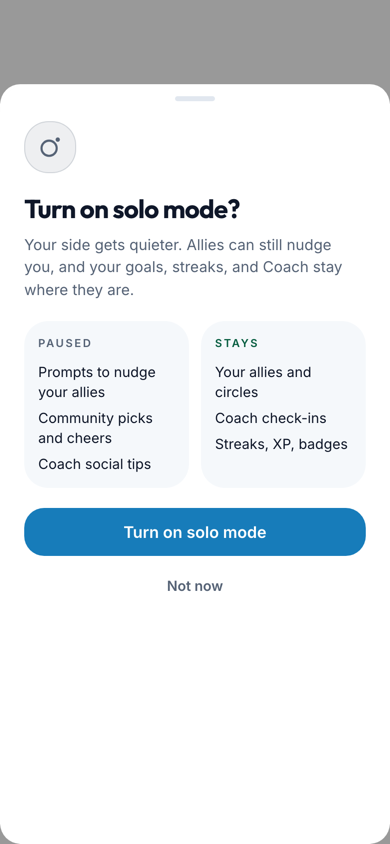
What pauses and what stays
Solo mode turns down the social layer. It doesn't remove your people or your progress.
| Paused while solo | Stays the same |
|---|---|
| Prompts to nudge your allies | Your allies and circles |
| Community picks and encouragement prompts | Coach check-ins |
| Coach social tips | Streaks, XP, and badges |
Solo mode quiets your side. Your allies can still send you a nudge while you're solo.
Your allies can see that you're going solo for now when they open your public profile. Anyone else just sees your profile as usual.
Turning it on
- Open Settings → Privacy. The Solo mode row sits at the top of the privacy controls.
- Flip the switch. A sheet lists what pauses and what stays.
- Tap Turn on solo mode. Or tap Not now to leave things as they are.
What you'll see
A small Solo marker sits at the top of the screen while solo mode is on. Tap it to jump straight to Settings → Privacy. If it shows a dot, an ally request is waiting for you in Notifications.
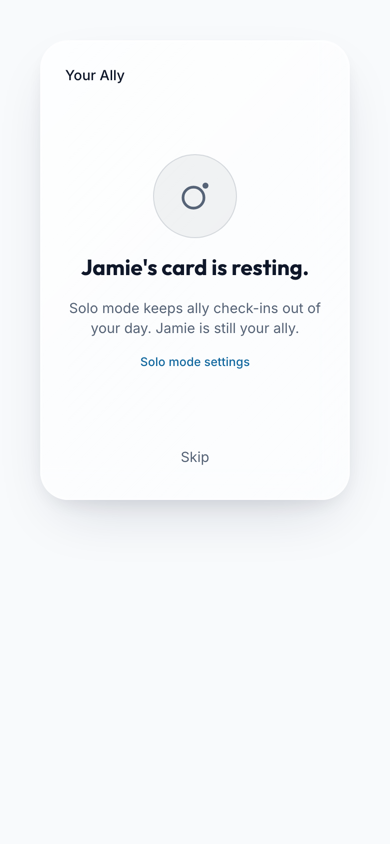
On your first solo day, the Dashboard shows a short Solo mode is on. card. Tap Got it to dismiss it, or What changed to review the list. After that, each social screen tells you it's quiet instead of going blank: Allies, Communities, the Activity feed, and the Coach tab.
Ally requests while you're solo
New ally requests don't pop up in the app while you're solo. They wait in Notifications under Waiting for you, where you can tap Review now whenever you like. Nothing expires while it waits.
Coach
Solo isn't quitting. Take the quiet week you need, then let your people back in when you're ready.
Turning it off
Flip the same switch in Settings → Privacy, or tap the Solo marker to get there. The sheet shows what comes back, including any ally requests that waited. Tap Turn off solo mode, or Stay solo to keep things quiet.